Create the Reporting Data Layer on GCP
This section provides information on how to create the Reporting Data Layer on Google Cloud Platform (GCP), with Google Cloud Storage and Google BigQuery. You can, however, use alternative software. We also provide documentation on how to create the Reporting Data Layer on Amazon Web Services.
Prerequisites
You have:
- A license for Collibra Insights.
- Collibra Data Intelligence Cloud 5.7 or newer.
- Software for working with Parquet files.
Steps
- Download a data snapshot from your Collibra environment
- Upload the data to a Google Cloud Storage bucket
- Create the Reporting Data Layer model in Google BigQuery
Step 1: Download a data snapshot from your Collibra DGC environment
- Enter the following URL in your browser:
<your-DGC-environment-URL>/rest/2.0/reporting/insights/download?snapshotDate=<snapshot_date>&format=zip, where <snapshot date> is the date from which you want the data, formatted as YYYY-MM-DD, for example "2019-07-23".
A ZIP file of the data from your Collibra environment, for the specified date, is downloaded to your hard disk. - Extract the ZIP files on your local computer.
A folder with the name of the ZIP file is created.
Step 2: Upload the data to a Google Cloud Storage bucket
Note This only needs to be done once for the collection Tableau workbook files. After that, you only need to carry out this step If the data layer model changes.
- Sign in to your GCP account and choose your working project for Insights deployment.Tip We recommend that you create a separate project for Insights deployment.
- In the tab menu, click the Storage tab and then click Cloud Storage.
- In the Browser tab, click Create bucket.

The Create a bucket dialog box appears. - In the Name your bucket field, enter a name for the bucket you are creating, for example "collibra-insights".
- Click Continue.
-
In the Choose where to store your data section, enter the relevant values, for example:
- Location type: Multi-region
- Location: Your geographic location
Tip Consult your IT department for help with the correct values for your Collibra environment configuration and to ensure compliance with your company policies. - Click Continue.
- In the Choose a default storage class for your data section, click Standard.
- Click Continue.
- in the Choose how to control access to objects section, enter the relevant values, for example:
- Access control: Uniform
Tip Consult your IT department for help with the correct values for your Collibra environment configuration and to ensure compliance with your company policies. - Click Continue.
- in the Choose how to protect object data section, enter the relevant values, for example:
- Protection tool: None
Tip Consult your IT department for help with the correct values for your Collibra environment configuration and to ensure compliance with your company policies. - Click Create.
The bucket is created. - In the Browse tab, search for your newly created bucket, and then click it.

The bucket details page opens. - Click Upload Folder, to upload the data you downloaded from your Collibra environment.
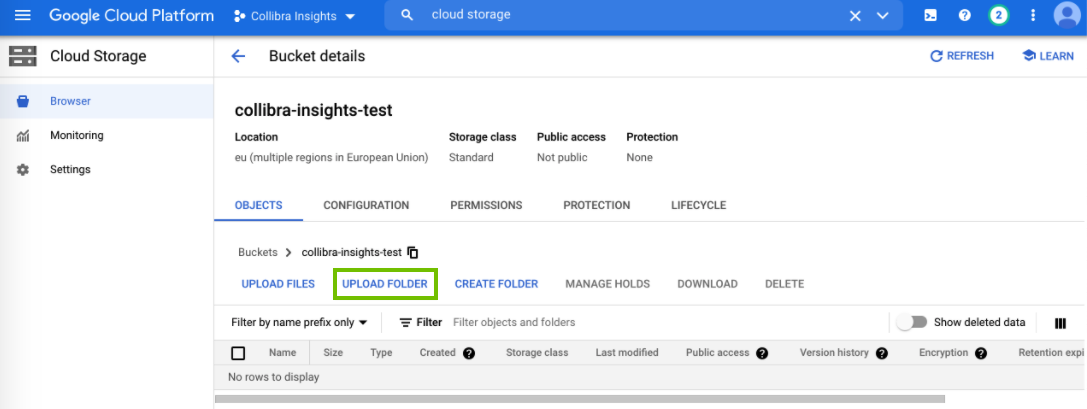
The Upload dialog box appears. -
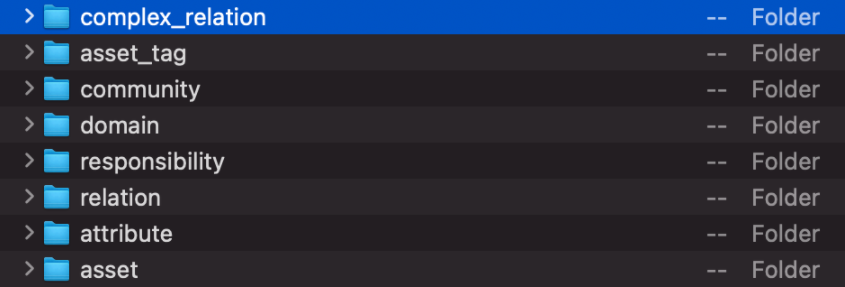
In the Upload dialog box, find the unpacked folders of the ZIP file you downloaded from your Collibra environment. As shown in the following image, there are eight folders to be uploaded.
-
Select a folder, for example "complex_relation", and then click Upload.
Note You can only select one folder at a time. -
Repeat steps 15-17, until you have uploaded all eight folders.
The folders are added to the newly created bucket.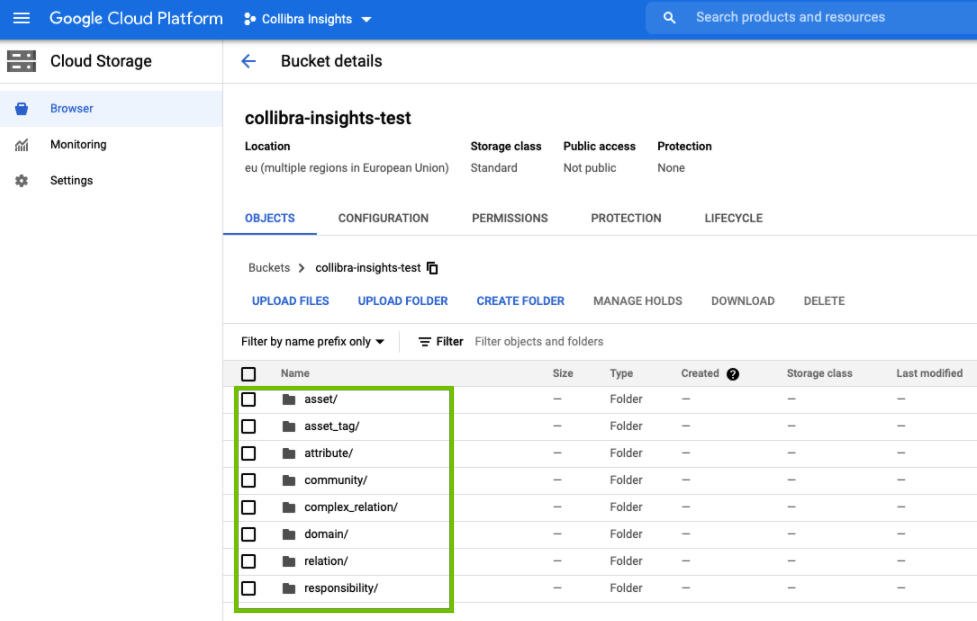
Step 3: Create the Reporting Data Layer model in Google BigQuery
Tip The objective of steps 6-8 in the following procedure can also be achieved by using a Cloud shell command.
- In the left tab menu, in the BIG DATA section, click BigQuery.
- On the Explorer page, find your Insights project, and then click
 > Create dataset.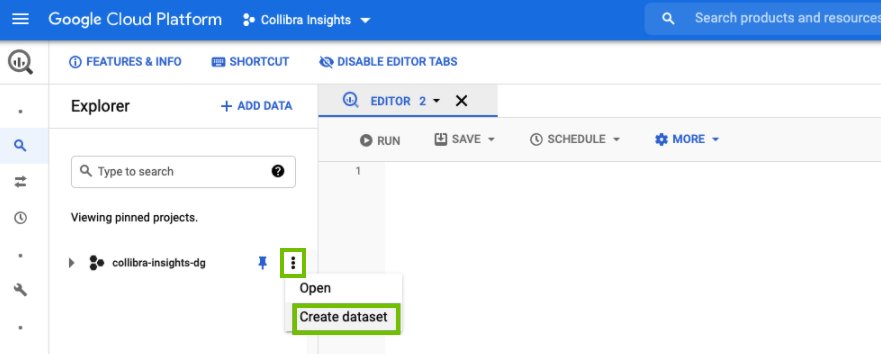
- In the Create dataset side panel, enter the relevant information:
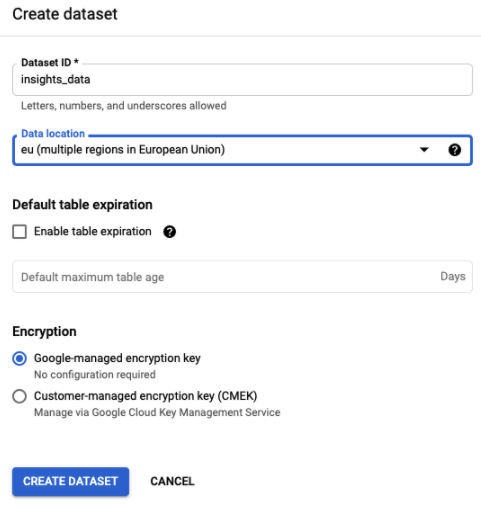
Field Description Dataset ID A unique name for your dataset. Data location The geographical region of your data.
Tip Consult your IT department for help with the correct value for your Collibra environment configuration and to ensure compliance with your company policies. - Click Create dataset.
- In the Explorer page, find your newly created dataset, and then click > Open.
The dataset view page opens.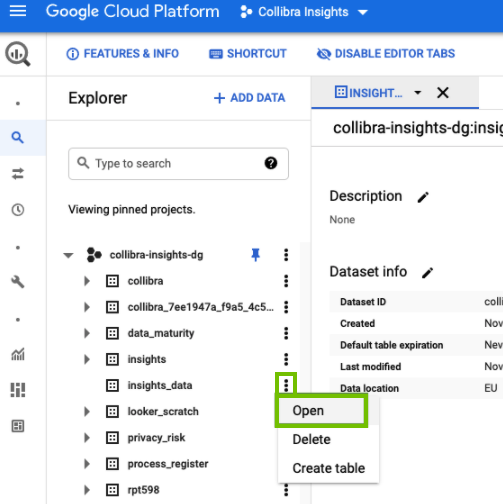
- In the dataset view page, click Create table.
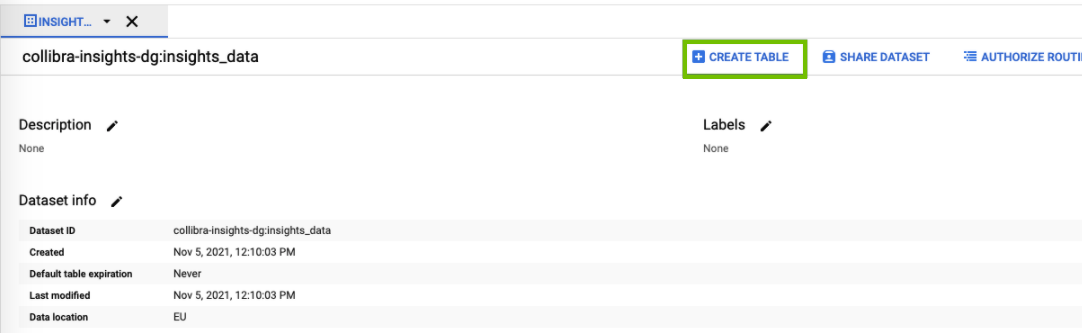
The Create table side panel opens. - In the Create table section, enter the relevant information:
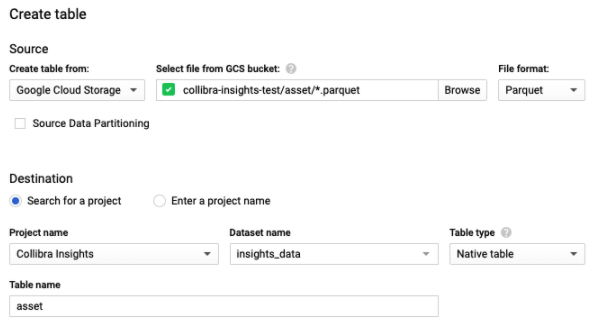
Field Description Create table from Select Google Cloud Storage. Select file from GCS bucket Enter <your-data-bucket-name>/<data type>/*.parquet
The bucket name is the one you created in Step 2.4 and the data type, for example "asset", is the sub-directory location.
Tip Step 9 of this procedure prompts you to repeat steps 6-8, for each data type, for example, asset, attributes, relation, responsibility and so forth.
File format Select Parquet. Source Data Partitioning This checkbox should be cleared. Search for a project / Enter a project name Select the Search for a project option. Project name Select the project you are using for Insights deployment. Dataset name Select the database name you entered in step 3.3. Table type Select Native table. Table name Enter the data type. This must match the data type enter for the sub-directory location in the Select file from GCS bucket field.
Tip Step 9 of this procedure prompts you to repeat steps 6-8, for each data type, for example, asset, attribute, relation, responsibility and so forth.
- Click Create table.
- Repeat steps 6-8 for each data type in the file you downloaded in step 1.1, for example, asset, relation, responsibility and so forth.

When you're done, all table definitions are shown and the Reporting Data Layer is fully configured.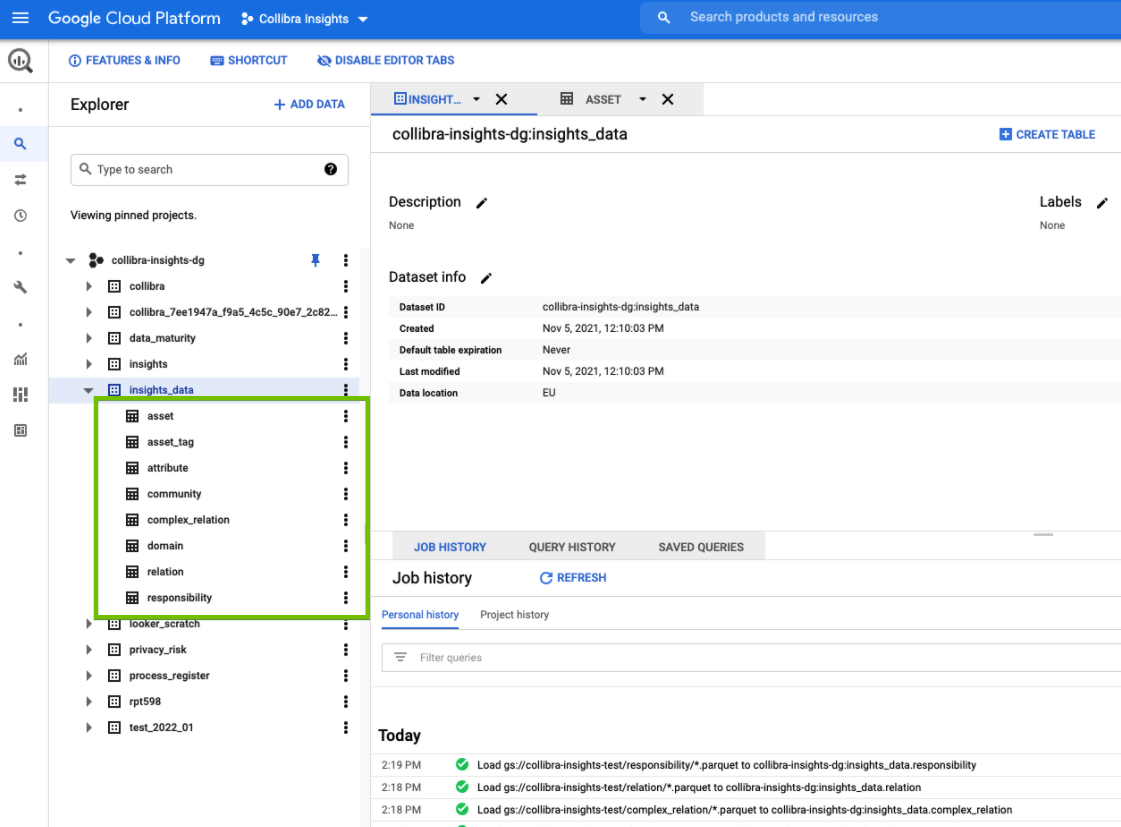
Use a Cloud shell command
The objective of steps 6-8 in the previous procedure can also be achieved by using a Cloud shell command.
Run the following command, where <customer-dataset-name> and <customer-data-bucket> are replaced with the relevant values.
bq load \
	--noreplace \
	--source_format=PARQUET \
	<customer-dataset-name>.asset \
	gs://<customer-data-bucket>/asset/*.parquet

bq load \
	--noreplace \
	--source_format=PARQUET \
	<customer-dataset-name>.asset_tag \
	gs://<customer-data-bucket>/asset_tag/*.parquet

bq load \
	--noreplace \
	--source_format=PARQUET \
	customer-dataset-name>.attribute \
	gs://<customer-data-bucket>/attribute/*.parquet

bq load \
	--noreplace \
	--source_format=PARQUET \
	<customer-dataset-name>.community \
	gs://<customer-data-bucket>/community/*.parquet

bq load \
	--noreplace \
	--source_format=PARQUET \
	<customer-dataset-name>.complex_relation \
	gs://<customer-data-bucket>/complex_relation/*.parquet

bq load \
	--noreplace \
	--source_format=PARQUET \
	<customer-dataset-name>.domain \
	gs://<customer-data-bucket>/domain/*.parquet

bq load \
	--noreplace \
	--source_format=PARQUET \
	<customer-dataset-name>.relation \
	gs://<customer-data-bucket>/relation/*.parquet

bq load \
	--noreplace \
	--source_format=PARQUET \
	<customer-dataset-name>.responsibility \
	gs://<customer-data-bucket>/responsibility/*.parquet