Profile and classify data via Edge
After you have configured the profiling and classification options, you can start the profiling and classification process for the schemas in the data source.
Tip Collibra Data Intelligence Cloud only has access to synchronized metadata, anonymized profiling results and classification suggestions, not to the actual data from your data source.
Prerequisites
- You have created a support ticket to request access to Edge and have created and installed an Edge site.
- Your Edge site has a global role with the following global permissions: Data Catalog and Register Profiling Information.
- Your Edge site has a JDBC profiling capability.
- You have enabled data source registration via Edge.
- You have enabled profiling and classification via Edge.
- You have registered a data source via Edge.
- You have synchronized one or more schemas of a registered database.
- You have configured the profiling and classification options.
Steps
- Manually profile and classify
- Automatically profile and classify after each synchronization
- Profile and classify based on a schedule
- Open the Database asset page of a registered database.
-
In the tab pane, click
 Configuration.
 - Click the Profiling and classification tab.
The Profiling and classification options open.Tip Only the synchronized schemas are available in the list.
Important If you only want to profile and classify one or more schemas, ensure the default profiling and classification option is set to Don't profile unless specified in the schema-specific rules, and that you have only defined a specific rule for the relevant schemas. - On the Profiling and classification tab page, click Run profiling and classification.
Data Catalog triggers the Edge site to start a profiling and classification job.
Depending on your profiling and classification options, the Edge site profiles and classifies all or some schemas, based on all synchronized metadata or on a sample.
- Open the Database asset page of a registered database.
-
In the tab pane, click
Configuration.
- Click the Profiling and classification tab.
The Profiling and classification options open.Tip Only the synchronized schemas are available in the list.
- In the Default profiling and classification rule section, click Edit.
- Select Automatically run when a metadata extraction is synchronized.
- Synchronize one or more schemas.
When the schemas are synchronized, Data Catalog automatically triggers the Edge site to start a profiling and classification job.
Depending on your profiling and classification options, the Edge site profiles and classifies all or some schemas, based on all synchronized metadata or on a sample.
- Open the Database asset page of a registered database.
-
In the tab pane, click
Configuration.
- Click the Profiling and classification tab.
The Profiling and classification options open.Tip Only the synchronized schemas are available in the list.
- In Synchronization schedule, click Add Schedule to add a new schedule, or
 to edit an existing schedule.
The Edit schedule dialog box appears. - Enter the required information.
Field Description Repeat The interval when you want to synchronize the schemas automatically, for example daily, weekly or based on a Cron expression. CronThe Quartz Cron expression that determines when the synchronization takes place.
This field is only visible if you select
Cron expressionin the Repeat field.EveryThe day on which you want to synchronize the schemas, for example Sunday.
This field is only visible if you select
Weeklyin the Repeat field.Every firstThe day of the month on which you want to synchronize the schemas , for example Tuesday.
This field is only visible if you select
Monthlyin the Repeat field.AtThe time at which you want to synchronize the schemas automatically, for example 14:00.
This field is only visible if you select
Daily,WeeklyorMonthlyin the Repeat field.Time zone The time zone for the schedule. - Click Save.
The profiling and classification job starts according to the schedule.
Depending on your profiling and classification options, the Edge site profiles and classifies all or some schemas, based on all synchronized metadata or on a sample.
What's next?
The Edge site completes the profiling and classification process and sends the results to Collibra Data Intelligence Cloud.
- You can see the profiling and classification job in the list of activities.
- You can find the profiling information and charts on the Data Profiling tab page of Table and Column asset pages.
- You can find the suggested data classes and provide feedback on them via the Database, Schema and Table asset pages.
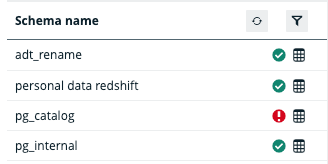
- In the Configuration of the Database asset page, if a schema is profiled and classified, you see a check symbol (
 ) next to the schema name. If the profiling or classification of a schema failed, an exclamation mark (
 ) is shown.