Collibra Browser Extension configuration
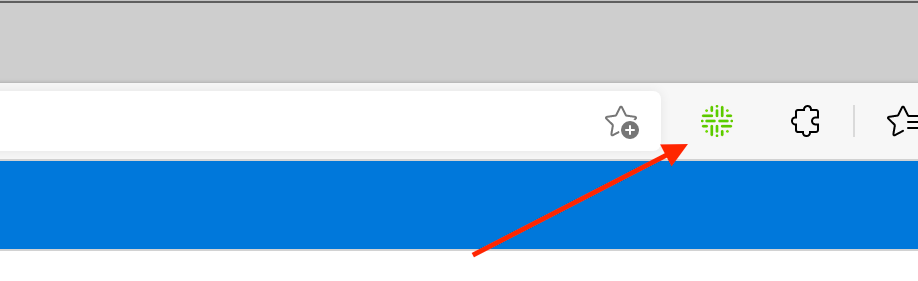
After you have added the Collibra Browser Extension, you have to set the URL of your Collibra Data Intelligence Cloud environment. We also recommend that you pin the extension in your browser's toolbar.
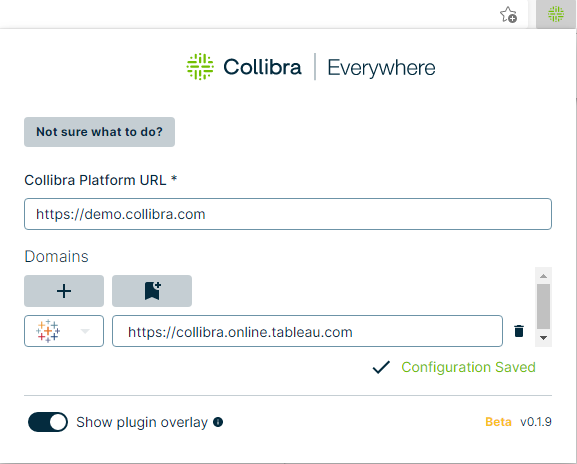
Set the URL of your Collibra environment and add web domains
Before you can use the Browser Extension, you have to set the URL of your Collibra Data Intelligence Cloud environment.
You have to enter your credentials upon your first search operation via the Browser Extension.
Optionally, you can add web domains to the configuration, for example the domains of your Tableau or Power BI web applications. Select the web application from the menu on the left of the domain URL. The Browser Extension is added to the web application as an overlay in the form of the Collibra logo if you have enabled the Show plugin overlay option.
Important You must add web domains if you want to benefit from the auto-matching data feature.
Pin the Browser Extension
Tip Make sure that extensions are visible in your browser's toolbar.
If you want the extension to always be accessible in the browser, pin it in your extension list.
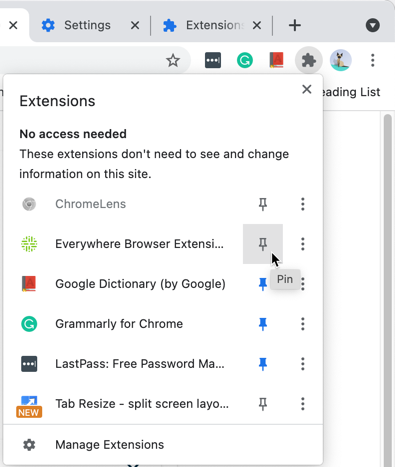
When you pin the extension, the Collibra logo is visible in your browser's extension list.