About data profiling
Data profiling creates a summary of a data source that is registered with Data Catalog and determines the data type of columns in the data source. The summary mainly contains statistics and graphics to give the user an idea what the registered data is about.
You can create profiling data by:
- Registering a data source and choosing to create profiling data.
- Importing profiling data via the Catalog API.
You can find the profiling information on the asset page of a table or a column, by clicking Data Profiling in the tab pane.
Profiling process
You can profile data via Edge or via Jobserver.
Profiling via Jobserver
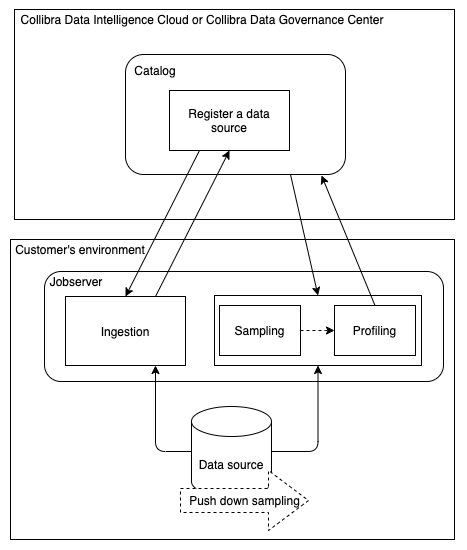
When you register a data source, Data Catalog triggers the ingestion process via Jobserver. By default, the complete data set is transferred to the Jobserver, which then creates a sample based on your data source. Jobserver profiles the sample and sends the result to Data Catalog.
You enable the Anonymize data option to hash or remove profiling information that can be considered sensitive.
Profiling via Edge
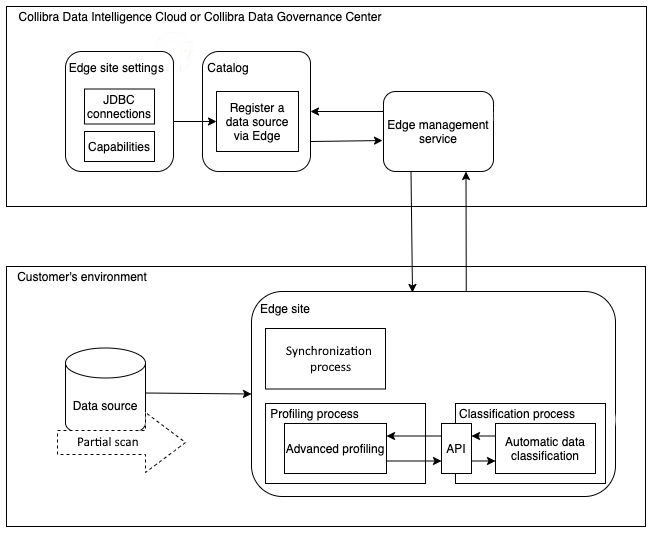
When you registered a data source via Edge and you have created a profiling capability, you can profile and classify the metadata via the Database asset page of the registered database.
-
You install an Edge site close to your data source and create the necessary JDBC connections and capabilities to ingest the data source and to profile and classify its metadata.
-
After synchronizing the schemas of the registered database, you can profile and classify the data. The profiling results are automatically anonymized.
Differences between profiling via Jobserver or via Edge
The following table shows the differences between profiling via Jobserver or via Edge.
|
Part of process |
Profiling via Jobserver |
Profiling via Edge |
|---|---|---|
| Data size | There is a limit on the size of the data that is used to calculate profiling statistics. By default, this is 10 GB. | There is no data size limit. The Edge site calculates the profiling statistics while reading the data. |
| Connectivity | Jobserver requires an HTTP proxy to support reverse connectivity. | Collibra connects to an Edge site. The Edge site is installed in the customer's environment, close to the data source. The Edge site communicates to Collibra Data Intelligence Cloud and other 3rd party systems using an HTTPS connection. |
| Register a data source | When registering a data source via Jobserver, options are available to profile the data and create sample data. | You can only profile the data after you registered a data source and synchronized one or more schemas. You can start the profiling process via the Configuration tab page on a Database asset page. |
| Deleting data profiling information | To delete data profiling information for a schema, refresh the schema without storing the data profile. See Refresh the schema of a registered data source. | Once data profiling information is available, you can only delete it by deleting the assets. |
Profiling sample
To create a data profile, Data Catalog uses a representative sample of the data.
Note This profiling sample is not the same as the sample available in Sample data.
Creating a profiling sample via Jobserver
If you register a data source via Jobserver, the profiling sample is created when you register the data source.
- If you use Jobserver without push down sampling, the complete data set is transferred to the Jobserver, which then creates the profiling sample based on your data source. The sample size is determined by the Table profiling data size setting in Collibra Console or the Services Configuration section of the Collibra settings. By default, the size is 10 GB.
- If you use Jobserver with push down sampling (also called partial scan), the data source itself creates the profiling sample and sends it to Data Catalog.
The data source creates the sample from randomly selected data and transfers it to the Jobserver. If the cache storage is reached, the process stops. Because the data source already created the sample randomly, the omitted data can be ignored without lowering the representativeness of the sample.Warning Push down sampling is only available for specific data sources.
Creating a profiling sample via Edge
Edge profiles and classifies the data on the Edge site itself and only sends the profiling results and classification suggestions to Collibra Data Intelligence Cloud
- If you use full scan via Edge, all the rows in a table are scanned for profiling, without limit.
- If you use partial scan, the data source itself creates the profiling sample from randomly selected data and sends it to Data Catalog.
Warning Partial scan is only available for specific data sources.
For more information, see Configure the profiling and classification options via Edge.