Install 5.7.12 over a 5.2 or newer version
In this upgrade scenario, you will upgrade a Collibra Data Governance Center 5.x environment to 5.7.12 by overwriting the current version with the 5.7.12 version:
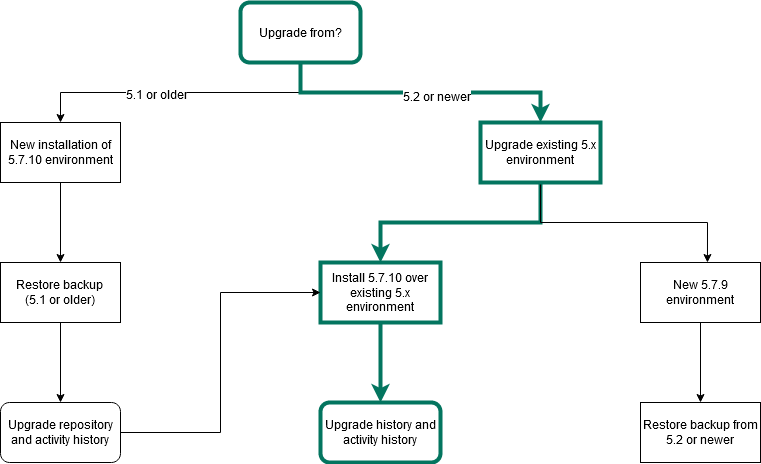
- You must add the Search and Monitoring services during the upgrade as these are new required services in an environment.
- You must upgrade with the same user account that was used for the installation, both on Linux and Windows. If the user account is no longer active, see Upgrade an environment with another user account in the Troubleshooting section.
Prerequisites
- You have enough free disk space in the volume that hosts the data folder, collibra_data. The free disk space must be at least the size of the current data.
For example, if your data in the data folder takes 5 GB, you need at least 5 GB of free disk space on that volume to upgrade. - Stop the environment and the agent and Console services.
- If you install the Search service on a Linux system, the node that will run the Search service must pass the following bootstrap checks:
- File descriptor
- Maximum number of threads check
- Maximum file size
- Maximum size virtual memory check
- Maximum map count check
Type
Check description
Minimum value
Applies for installation type
Setting name
User limit Maximum number of open file descriptors 65536 - Without root permissions
- With root permissions, using System V init daemon
nofile Maximum number of open threads/processes 4096 nproc Maximum file size unlimited fsize Kernel parameter Maximum virtual memory areas 262144 - All
vm.max_map_count For more information on these settings, see the Troubleshooting section.
- The status of your repository is Green or Orange.
Warning If the status of the repository is Red, do not start the upgrade procedure but contact Collibra Support.
Steps
Use this drop-down to select your operating system:
- Stop the environment.
- Stop the Collibra Agent and Collibra Console.
- Start the installation wizard:
-
Linux as user with sudo rights:
sudo ./dgc-linux-5.7.12-0.sh
Linux as root user:./dgc-linux-5.7.12-0.sh - Linux as standard user:
./dgc-linux-5.7.12-0.sh - Windows Server: double-click setup.bat
Important The path of the installer file cannot contain spaces.
If you run the installation without Administrator rights, an error is shown. - Click Next.
- Select the installation directory of the old version and click Update.Note If you select a different installation directory, you will add a new Collibra DGC installation next to the existing installation.
- Click Yes to confirm that you have created a backup and that all the services are stopped on the node.
The Component selection dialog box appears, indicating which services are installed on the node. - Select the services that you want to add to the node and click Next.Note On a single-node installation, you have to select at least the Search and Monitoring services.
- If you have selected new services in the previous step, you have to configure the services in the next dialog boxes. After the last configuration dialog box, click Update.
The installed services on the node are upgraded and newly selected services are installed. - Click Exit.Note
- If you have a multinode installation, repeat the previous steps for every node of the environment until you have upgraded all nodes.
- Make sure that you have installed the Search and Monitoring services on one of the nodes.
- Start Collibra Console.
You will notice that the upgraded environment is incomplete. - Add the Search service to your environment.
- Start the environment.
The start of the environment will be interrupted and your environment will be partially running. - Click the orange Upgrade button to continue the upgrade.
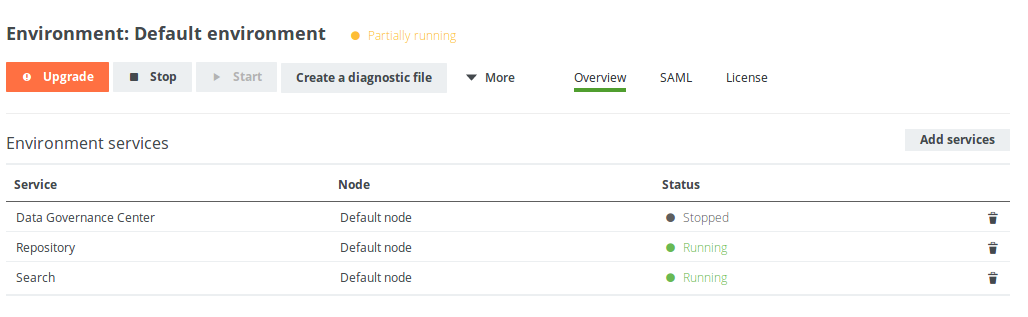
- In the Upgrade dialog box, click Upgrade.
Your environment is being upgraded. When all services are up and running again, the upgrade process has completed.Tip- In this phase, a backup of the current database will be created. If the creation would take too much time, it will time out and the upgrade will fail. Increase the backup timeout in that case and restart the upgrade.
- If the environment ends up in Error state, it is most likely because starting the DGC service takes too much time. See Environment in error state after during the upgrade.
If your environment is configured with SAML and it is no longer functional after the upgrade, consult the troubleshooting section.
- Reindex Collibra.
- Upgrade the activity history.
Tip If you don't want to use the user interface even if it's available, add the following to the command: -- --nox11
If you look in the upgrade logs (upgrade-task.log), you will see one of the following lines near the end:
INFO - COMPLETED Upgrade the database version to [5.2]INFO - *** Results of upgrade from version 5.1 to version 5.2 ***
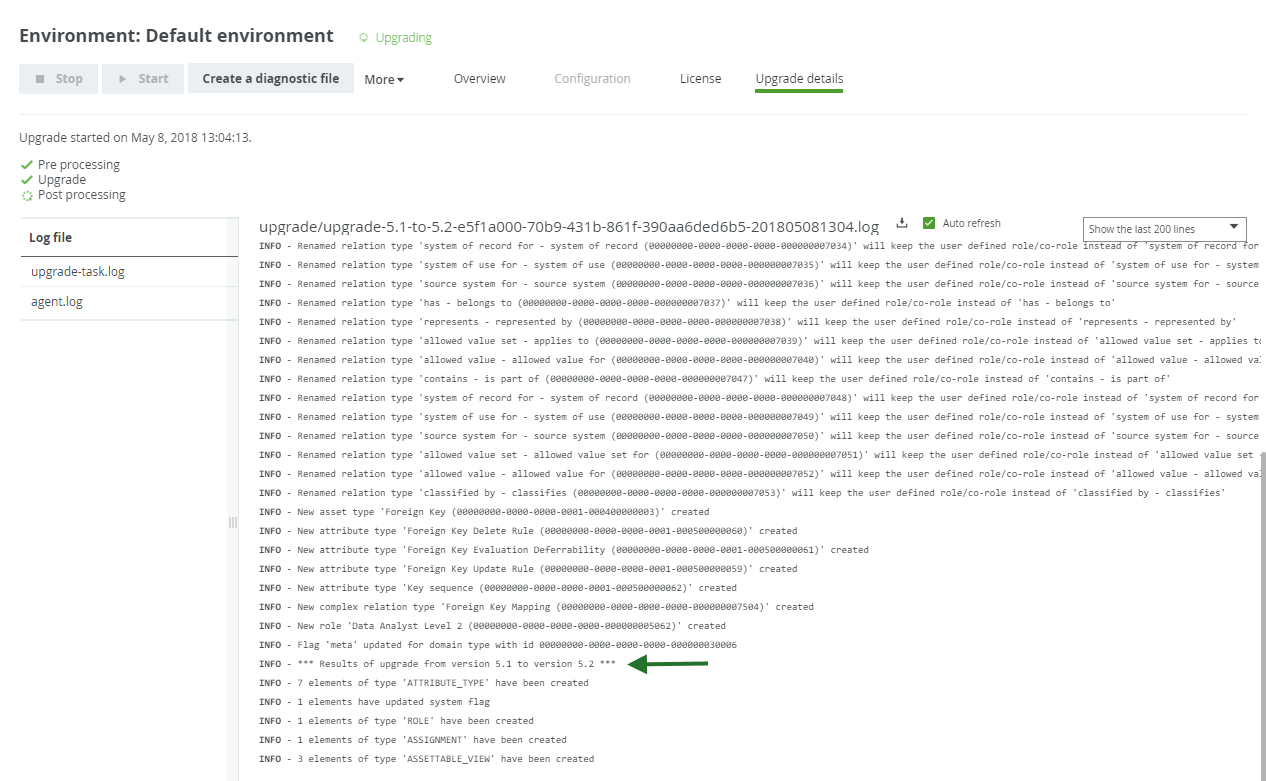
This means that the repository has upgraded to 5.2 at this point. The upgrade to a later version, for example 5.7.12, is performed during the start of the DGC service and is therefore not logged in this log file, but in dgc.log, which you can find in the diagnostic file.