Revalidate an asset
You can revalidate assets that were previously validated to see whether they meet the validation rules that are assigned to the asset type.
Validating an asset executes all validation rules that are assigned to the asset types. If an asset does not meet all validation rules, the asset is invalid.
You can see the validation result:
- An asset page’s title bar.
- As a column, when viewing assets in table display mode.
- As a field, when viewing assets in tiles display mode.
- As an overlay in a diagram.
Note You can create a workflow to automatically revalidate assets. To configure validation on certain events, see Getting started with workflows.
Prerequisites
- Either of the following:
- You have a resource role with the Validation Execution resource permission, for example Community Manager.
- You have a global role that has the Manage all resources global permission.
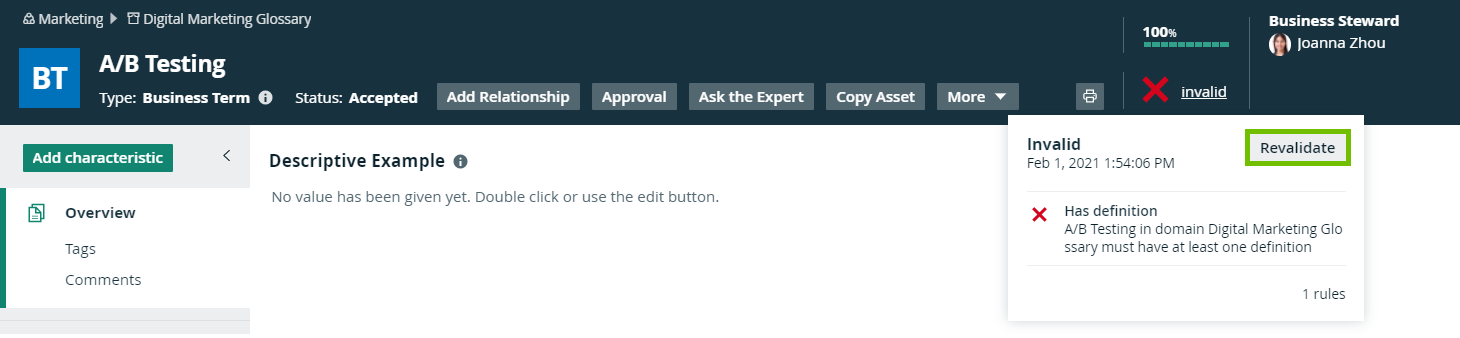
Revalidate an asset from the asset page
- Open an asset.
- In the upper right corner, click
 valid or
  invalid.
 - Click Revalidate.
Revalidate one or more assets from an asset view
- Open an asset table.
- Select checkboxes in front of one or more assets.
- In the action toolbar, click Validate.
Revalidate an asset from an asset view
- Open an asset table.
- If you don't see the Validation Result column, add it to the table.
More info on adding columns to a table: Customizing tables. - Click or .
You can see the validation result of each validation rule. - Click Revalidate.
