Migration
The Migration feature allows you to migrate the operating model and views from one Collibra Data Intelligence Cloud environment to another environment. This makes it easier to migrate changes between development environments, testing environments and the actual production environment.
Migration is not meant to be used for backups, or to migrate instance data, such as assets and domains. You can use the import and export features to move assets to another environment. You can use backups for disaster recovery.
Note Exporting and importing CMA files is restricted by the file upload settings, which determine the maximum file size, allowed file extensions and maximum amount of uploads and downloads per day.
The versions of the source and target environment have to be the same. Migrating between different versions may lead to unexpected behavior.
For example, migrating does not work correctly if you import a CMA file in an environment of version 2021.07 or older if the CMA file includes assignments of any of the following asset types:
- BI Report Attribute
- Business Qualifier
- Column
- Field
- Looker Report Attribute
- Report Attribute
- Table
- Tableau Report Attribute
Overview of the migration procedure
- Export objects from a source environment.
- Choose the objects that you want to migrate.
- Download the summary and the archive.
- Review the summary.
- Create a backup of your target environment.Note This is technically not mandatory, but highly recommended.
- Import the archive
- Upload the archive to a target environment.
A simulation report is downloaded. - Review the simulation report.
- Import the archive.
The archive file is imported, creating and editing model objects as necessary.
The import report is downloaded.
- Upload the archive to a target environment.
Best practice
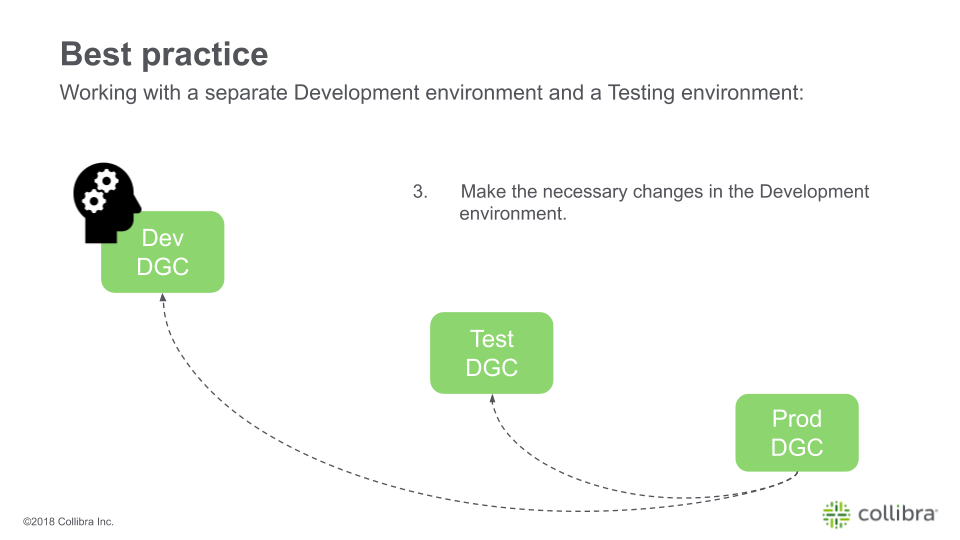
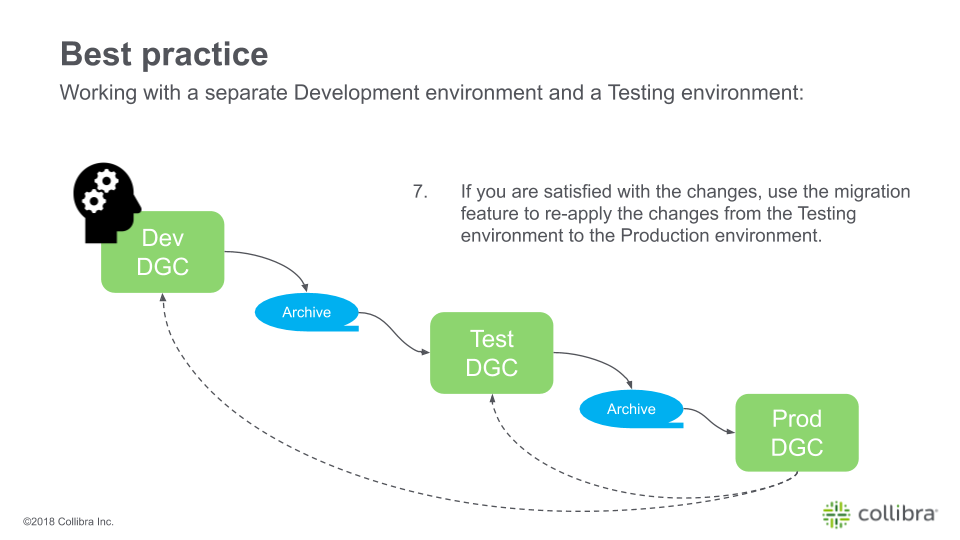
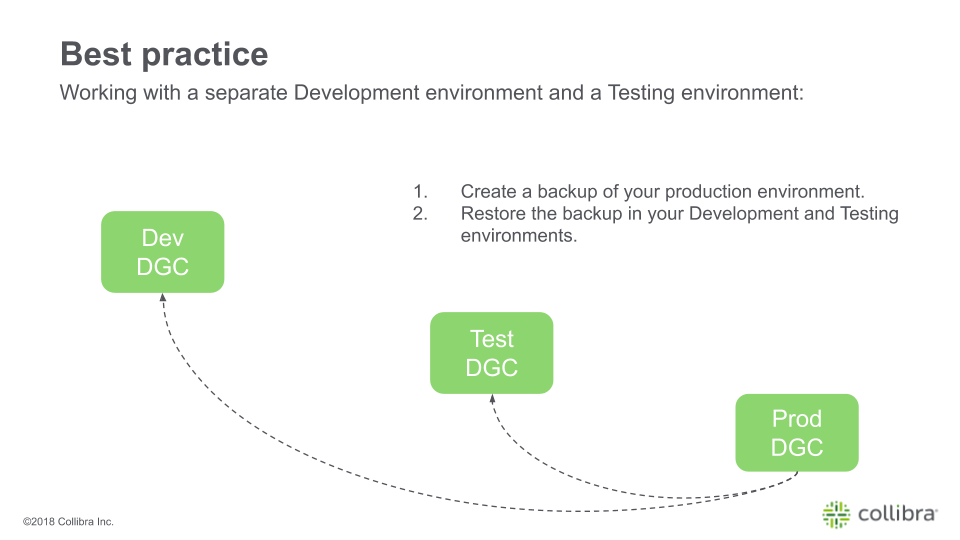
It is highly recommended not to make risky changes to the metamodel of your Production environment. Instead, we recommend you use a separate Development environment and Testing environment:
Tip Hover your mouse cursor over the steps to see a graphical representation!
|
|