Push down sampling
Push down sampling means that the task of creating the data sample is delegated to the data source itself.
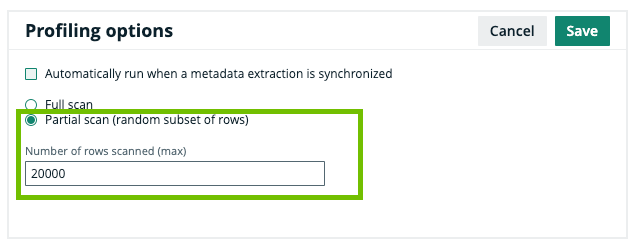
Tip In Edge, push down sampling is called partial scan.
- The data source creates the sample from randomly selected data and transfers it to the Jobserver
If the cache storage is reached nonetheless, the fetching process can be stopped. Because the data source already created the sample randomly, the omitted data can be ignored without lowering the representativeness of the sample. - Push down sampling can be done using dynamic SQL query, if the data source supports data sampling. For an overview, see Overview of Collibra-provided JDBC drivers.
Push down sampling drastically increases the performance of sampling.
Enable push down sampling
- Via Jobserver
- Via Edge
Push down sampling is not used by default. To use push down sampling, do the following:
|
Step |
When |
Description |
|---|---|---|
| 1 | Manage the driver |
Add the pushDownSampling connection property. |
| 2 | Register your data source |
Follow the usual steps to register a data source, but include the following options:
|
Push down sampling is performed via the Partial scan option. To use push down sampling, do the following:
|
Step |
When |
Description |
|---|---|---|
| 1 | Register a data source via Edge. |
Follow the usual steps to register a data source via Edge. |
| 2 | Profile and classify synchronized metadata. |
On the Profiling and Classification tab of a Database asset's Configuration tab page, do the following:
|