Diagram editor
The diagram editor allows you to view and edit diagrams.
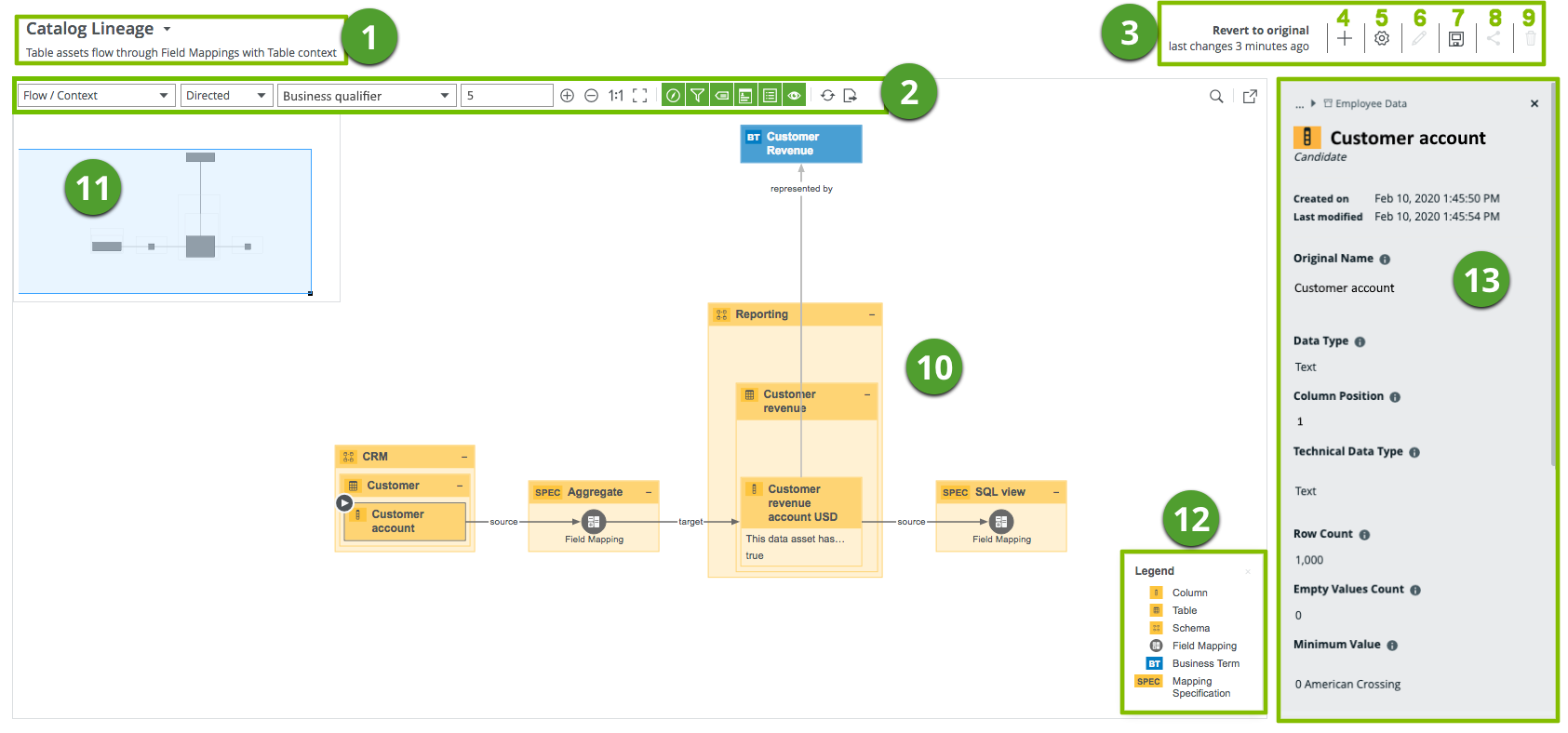
| No | Name | Description |
|---|---|---|
| 1 | View title |
The name and description of the current diagram view. You can select a different view from a list of pinned and applicable views for an asset of this type. You can open the list of views when you click the view name and then Show all. |
| 2 | Diagram toolbar | The toolbar to work with the diagram. |
| 3 | View bar menu | The buttons to manage the diagram view. |
| 4 |

|
The button to create a new diagram view, starting from the selected node. |
| 5 |

|
The button to edit the current diagram view. |
| 6 |

|
The button to edit the name and description of the current diagram view. |
| 7 |

|
The button to save the diagram view as a new view. |
| 8 |

|
The button to share the diagram view. |
| 9 |

|
The button to delete the diagram view. |
| 10 | Diagram | This is the actual depiction of the traceability of the current asset, according to the selected diagram view. |
| 11 | Overview ( ) ) |
The box to zoom and navigate a diagram that is too large to fit the screen. You can move it to anywhere in the diagram. |
| 12 | Legend |
The legend explains the color codes and symbols of the items in the For each asset type and complex relation type that is visible on the If all occurrences of a given type are boxed inside collapsed boxing nodes, that type is not visible and therefore, not shown in the legend. Tip
Click a row in the legend to select all occurrences of that type in the |
|
Preview panel |
The preview panel with information about the selected node. |