Viewing workflow tasks
Workflows create tasks that ask users to provide input or to perform certain actions. You can view the tasks that are currently assigned to you in different locations, in different contexts.
If a task is part of a workflow that has been started for a specific resource, you can consult the task on the resource page.
The interface is different when the task sidebar option is enabled.
It is displayed in the sidebar:
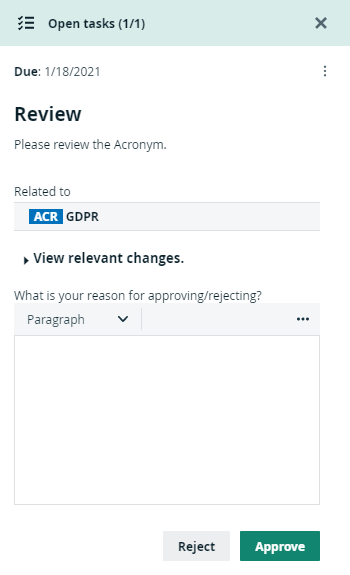
It is displayed right under the title bar:

You can also view all the tasks that have been assigned to you per resource. On the main menu bar, click the Tasks button.

A page with a list of your tasks is displayed by default. You can order the tasks alphabetically by clicking the column headers.
With the correct permission, you can do the following:
- Consult all other open tasks, on the All Tasks page. This view shows all your tasks and tasks for other users, for which you have permission to view.
- Cancel or reassign the tasks on the All Tasks page. When you cancel a task, you have to provide a reason in the dialog box that is displayed. After you have confirmed, the reason is shown as a comment on the corresponding asset page. You must not, in any way, complete tasks of other users.
An Error column displays an error message if the workflow task encountered an unexpected error.