Install the DGC service
The DGC service contains the business logic of Collibra Data Governance Center and contains amongst others a workflow engine and various APIs (Java, REST, Search, ...).
This is a mandatory service in every Collibra DGC environment.
Tip For the installation on Linux without root permissions, also read the services section.
Steps
Use this drop-down to select your operating system:
Note Anti-virus and/or security software may block the installation on Windows. Make sure that these allow the installation of software and services.
For more information, see also the Collibra University course.
- Run the installer:
-
Linux as user with sudo rights:
sudo ./dgc-linux-5.7.10-0.sh
Linux as root user:./dgc-linux-5.7.10-0.sh - Linux as standard user:
./dgc-linux-5.7.10-0.sh - Windows Server: double-click setup.bat
Important The path of the installer file cannot contain spaces.
If you run the installation without Administrator rights, an error is shown.
Tip If you don't want to use the user interface even if it's available, add the following to the command:
-- --nox11 -
Linux as user with sudo rights:
- In the wizard introduction, click Next.
- Enter the Installation directory of the Data Governance Center service.
- Default location on Linux as root or user with sudo privileges: /opt/collibra
- Default location on Linux as standard user: ~/collibra
- Default location on Windows Server: C:\collibra
Important On Windows, the target installation directory cannot contain spaces.
- Click Next.
- Enter the location of the Collibra Data Directory.
- Default location on Linux as root or user with sudo privileges: /opt/collibra_data
- Default location on Linux as standard user: ~/collibra_data
- Default location on Windows Server: C:\collibra_data
Important On Windows, that target data directory cannot contain spaces.
- Click Next.
- Clear all components except Data Governance Center.
- Click Next.
- Enter the required information.
Setting
Description
DGC port The TCP port to access your Collibra DGC environment via your web browser.
The default port is 4400.DGC Shutdown port The TCP port to stop the DGC service.
The default port is 4430.DGC minimum memory The minimum amount of memory in megabytes for the DGC service.
This must be at least 1024 MB and no greater than 32 768 MB (32 GB).
DGC maximum memory The maximum amount of memory in megabytes that can be assigned to the DGC service.
This must be at least 2048 MB and no greater than 32 768 MB (32 GB).DGC context path
The path that is added to the base URL to reach Collibra Data Intelligence Cloud.
For example, if your base URL is
https://dgc.yourcompany.com:4400/and your context path isacceptance, then your path to reach Collibra ishttps://dgc.yourcompany.com:4400/acceptance.See also Set the context path of the DGC service in Collibra Console.
If you run multiple environments on one node, all ports must be unique for each environment.
- Click Next.
- Enter the Agent service settings and click Next.
Setting
Description
Agent port The TCP port that is used by Collibra Console to manage the services of an environment.
The default port is 4401.If you run multiple agents on one node, this port must be unique for each agent.
Node address The hostname of the node on which the Agent service is running.
You cannot use a loopback address if you want to use the node in a multinode environment.
Warning Do not use the loopback address.
- Click Install.
The installation of the DGC service starts. - On Windows, you may see User Account Control warnings requesting to make changes to your device.
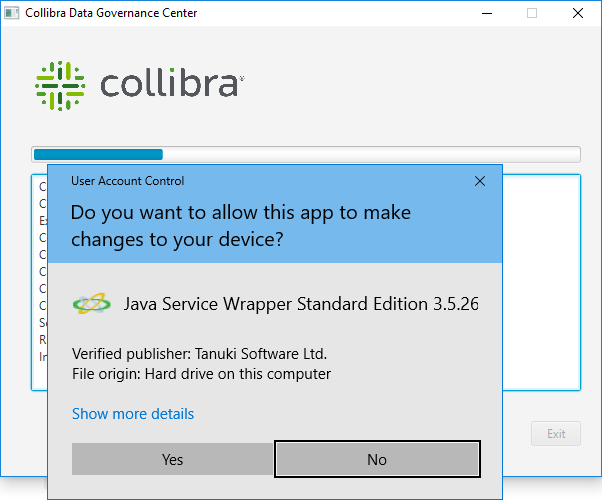
Click Yes for each of the requests, if you click No, the installation will fail. -
Click Exit.
The DGC service is installed on your node.
What's next?
Add the DGC service to your environment, this service is mandatory for a functional Collibra DGC environment.