Import assets
You can import
Tip For easier bulk changes, you can perform the so-called export/import roundtrip. First create a view that contains all the characteristics, then export that view, edit the exported file, and import it back into the same view. Collibra will automatically map the characteristics during the import.
Note Exporting and importing assets and complex relations is restricted by the file upload settings, which determine the maximum file size, allowed file extensions and maximum amount of uploads and downloads per day.
Prerequisites
You have prepared an Excel
- Only the essential sheets, columns and rows remain.
- Numbers that have to be interpreted as text are preceded by a single quotation mark.
- Dates are formatted as yyyy-mm-dd.
Note Importing data from a large Excel file can consume a lot of memory. We advise you to import from CSV instead of Excel, or to limit the Excel file to only contain the data you really need.
Steps
- Open a view.
- Above the table, to the right, click
 →
→
The Import dialog box appears. - Click Select File and choose the appropriate Excel
- Click Next.
- If you chose a CSV File, do the following:
- Enter the required information.
Field Description Column Separator The character used to delimit the columns in the CSV file. Quote The character before and after a string to capture the entire cell. Escape Character The character that is used to use the column separator or quote character as plain text. - Click Next.
- Enter the required information.
- Manage the mapping of the columns of the import file and the view's fields.
- The Import mapping dialog box appears and Collibra tries to map the fields of the view automatically to the columns in the import file, based on the names of the fields and columns.Learn more about the mapping dialog box.
Visual
Number Field Description 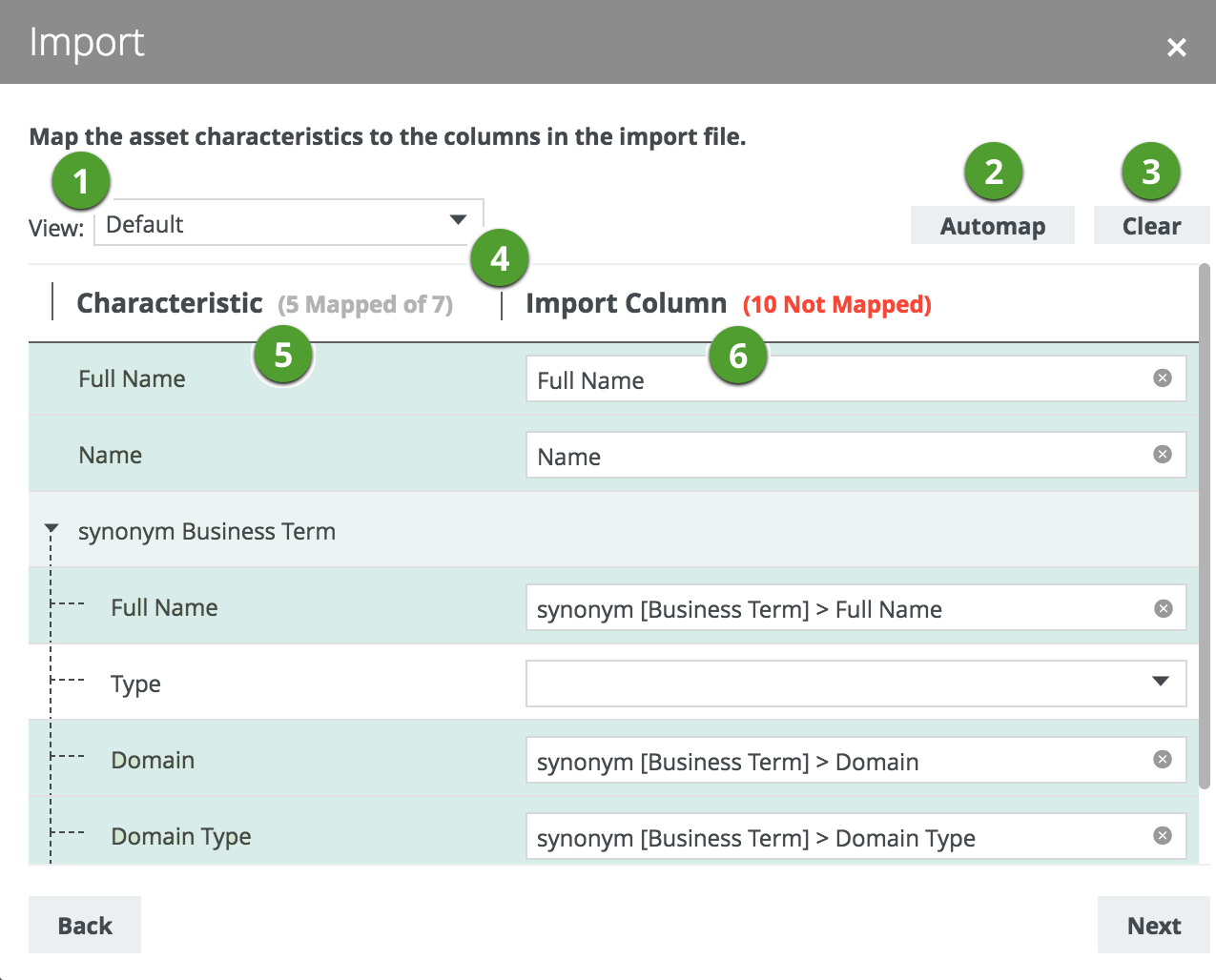
1
View selector
The view selector allows you to choose a view whose characteristics will appear in the list.
Tip You can also choose All characteristics to show all characteristics.
2
Automap
Button to let Collibra automatically map all fields of the view to the columns in the import file, based on the names of the characteristics and columns.
3
Clear
Button to clear all mapped characteristics in the Import Column.
4
Mapping table
This table enables you to map characteristics of the view to columns of the import file.
Each row has a background color to indicate whether a characteristics is mapped or not.
- Dark green: The characteristic is mapped to a column in the import file.
- Light green: The relation is mapped partially. This means not all underlying fields are mapped.
- White: The characteristic is not mapped.
5
CharacteristicThis column contains the available characteristics. Depending on the selection in the view selector, it contains either the characteristics of the selected view, or all characteristics. For relations, a hierarchy is displayed. 6
Import ColumnThis column should contain fields in which you can choose columns of the import file to map to a characteristic of the view.
- If required, choose another view in the view selector. Tip Choose All characteristics to show all characteristics. In most cases, this makes it easier to map all characteristics.
- Click Automap to let Collibra map all visible columns automatically.
- If required, manually map columns to another characteristic.
- The Import mapping dialog box appears and Collibra tries to map the fields of the view automatically to the columns in the import file, based on the names of the fields and columns.
- Click Next.
The Import options appear. - Enter the required information.
Setting Result Create new assets and domains if non-existent. If assets or domains do not exist, Collibra creates them.
Collibra creates a new domain and top-level community if the following conditions are met:
- You mapped columns of the import file to the domain, domain type and community characteristics of the view.
- The columns contain a domain and/or community name that doesn't exist yet.
How do you want to handle existing assets? Replace them with the new assets. (=> delete + create)If assets exist, Collibra deletes them first and creates them again based on the import file. Update the name, properties and attributes.If assets exist, Collibra compares the attributes and updates them if necessary. How do you want to handle mapped attributes? Replace them with new attributes. (=> delete + create)If attributes exist, Collibra deletes them and creates them again based on the import file.
Select this option if you want to update existing, or add new attributes, such as a definition.
Create as new attributes.If attributes exist, Collibra creates another instance of the attributes based on the import file.
Select this option if you do not want to edit the existing attributes, but always want to create new attributes. This could result in multiple instances of the same attributes, such as a definition.
Delete existing assets from the domain that are not in the file. Collibra deletes the assets that are not in the import file. Test Import Collibra first simulates an import without affecting the data to give you an overview of how the actual import would affect the data. After the overview, you can proceed with the import, go back to change the options or cancel the import. - Click the Test Import button.
The test results appear. - If everything looks okay, click Import.
If it doesn't, close the dialog box to cancel the import or click Back to change the mapping or import options.
The import results appear. - Click Close.