Technical lineage Settings tab pane
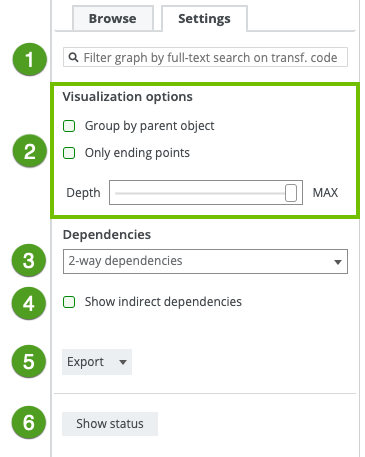
The Settings tab pane allows you to edit the technical lineage, search for queries and export the technical lineage.
|
No |
Name | Description |
|---|---|---|
|
|
Search field |
|
|
|
Visualization options |
Options to define how you will see the data objects in the technical lineage. |
|
Group by parent object
|
Option to group tables and columns together by their hierarchical parent object. Example A schema is the parent object of a table.
|
|
| Option to hide all data objects in the middle of the data flow and only show the ending points of the technical lineage. | ||
|
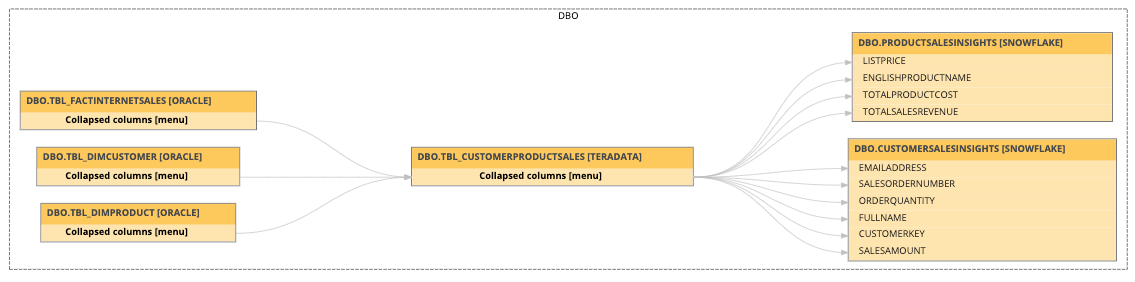
A slider that determines the maximum flow depth. The relation path length from the first node in the technical lineage graph to any other node is automatically adjusted to the maximum flow depth. If you see |
||
|
|
Dependencies |
Drop-down to select the dependencies that you want to visualize. You can select one of the following dependencies:
|
|
|
Show indirect dependencies |
Option to enable indirect dependencies. |
|
|
Export |
Button to export your technical lineage to PDF, PNG or CSV. |
|
|
Show status |
Button to switch to the Sources tab page, which shows the analysis log files of your data sources and the Stitching tab page, which shows an overview of assets and data objects and shows which are stitched. |


 in the


