Resolve a schema refresh conflict when columns are added and deleted at the same time
If you refresh a schema, the ingestion process will detect conflicts if the data source has the following changes:
- A column has been removed.
- A column has been added.
In the following example, the ingested schema has a column age and in the updated schema, the column age is removed and a column birthday is added.
To resolve such a refresh conflict, follow these steps:
- Look up the data source with the search function or as follows:
-
In the main menu, click
 , then
  Catalog.
The Catalog Home opens. - In the submenu, click Data Sources.
- Optionally, add the Refresh Conflict column to the table.
- In the table, expand the relevant schema and table to find the columns with refresh conflicts.
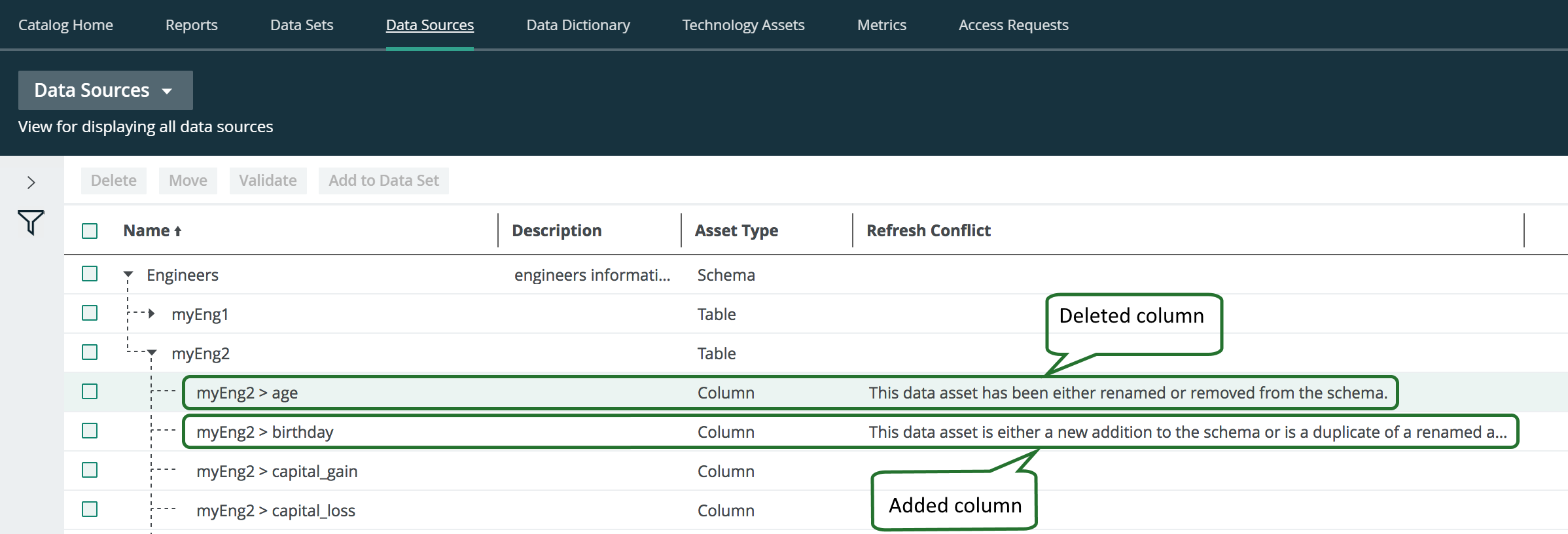
-
In the main menu, click
- Select the column that is removed from the data source. In this example it is the age column.
If necessary, select all column assets that are removed from the data source. - Above the table click Delete.
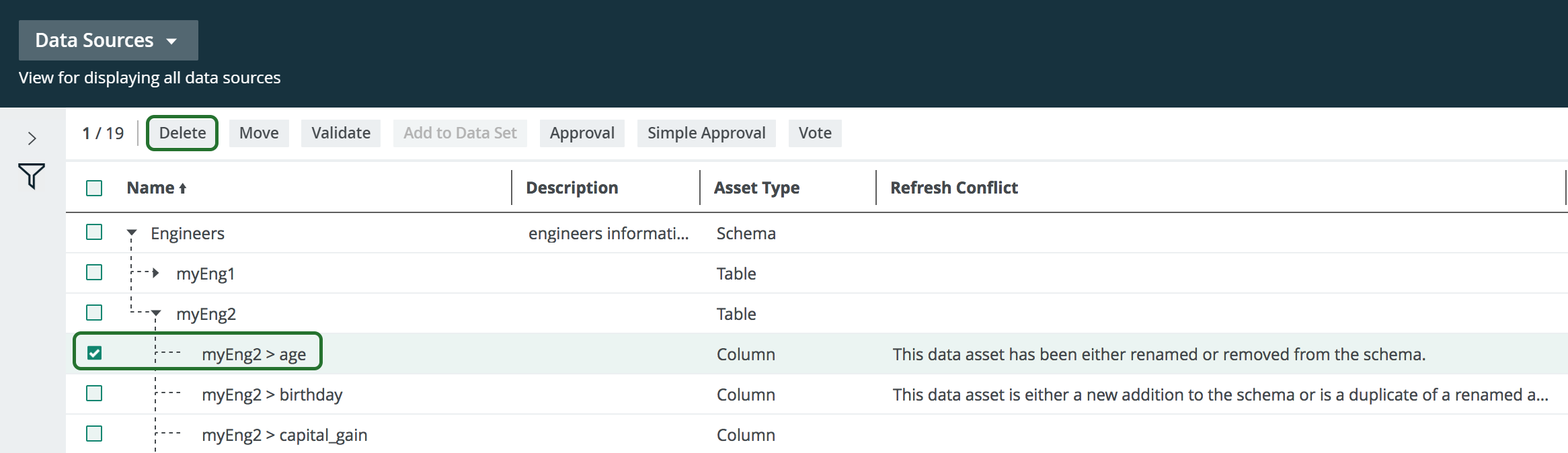
- Click Yes to confirm the deletion of the column.
- Click the name of the added column name.
The column asset page appear. - In the Refresh Conflict section of the column asset page, hover over the message and click
 on the right-hand side.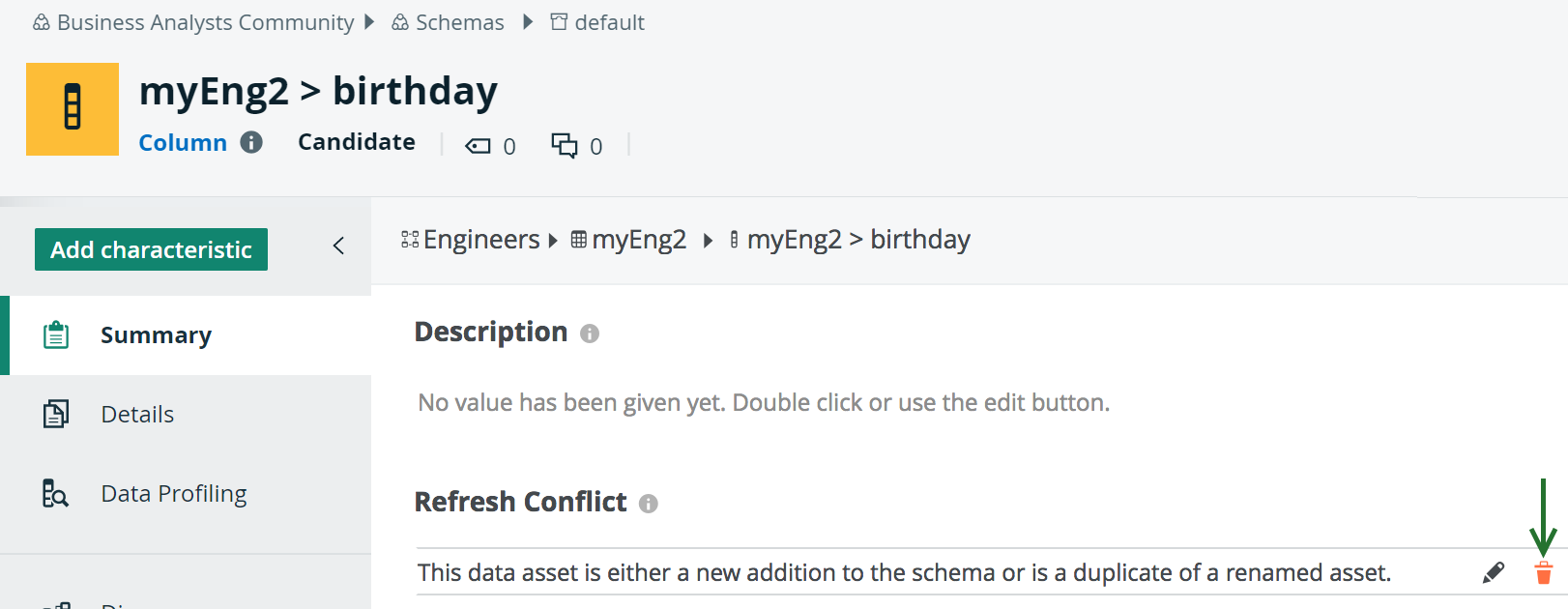
- Click Yes to confirm the deletion of the attribute.
- Click the browser's Back button to return to the Data Sources view of the table.
You can also click on the breadcrumb, as shown in the following image, to open the table asset page of the ingested schema.'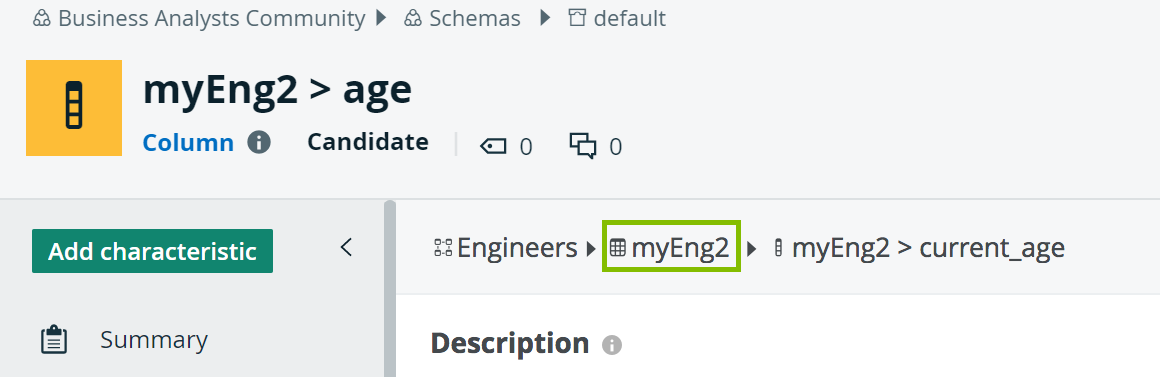
- Repeat steps 5 to 8 for all other added columns.