Request access to data sets and reports
To access to the data in one or more data sets or reports, you need to request access to the data sets or reports.
Steps
-
In the main menu, click
 , then
  Catalog.
The Catalog Home opens. - In the submenu, click Data Sets or Reports.
- If necessary, search for the data sets or reports that you want to access.
- Select the check boxes of the data sets or reports that you want to access.
- Above the tiles, click Add to Data Basket.
A message at the top right lets you know that the assets have been added to your basket. - Open your basket by clicking
 on the main menu bar.
 - Review your basket.
To remove unnecessary assets, select them and click Remove from data basket. - Click Checkout Data Basket.
- Fill in the Start Form and click Submit.
- If the Add Purpose to the Data Usage dialog box appears, start typing and select the Purpose asset that describes the business use for which you are requesting access to the data sets or reports, and then click Submit.Note This dialog box appears only if Collibra Data Privacy is installed.
What's next?
- A workflow is started, to approve the request and grant you access to the data.
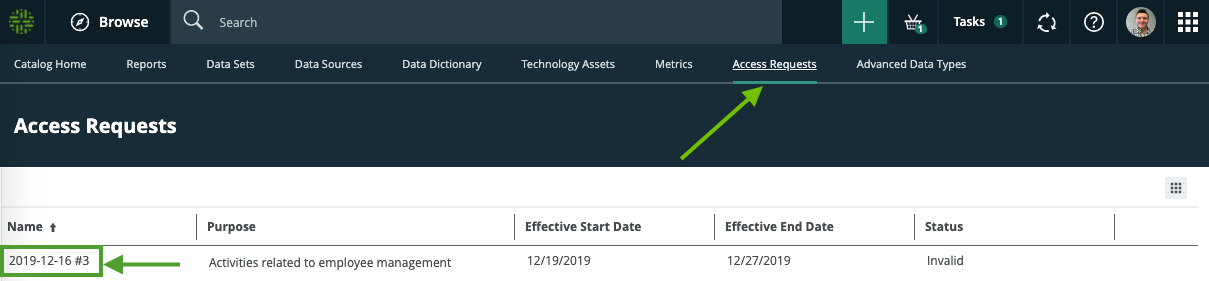
- A Data Usage asset is created in Collibra Data Intelligence Cloud. You can view all your requests and their current status on the Access Requests page.