Configure a text widget with embedded IFrame
The Report Catalog and Certified Reports tiles on the Report Certification dashboard are IFrames in text widgets. You can edit the tiles and the text widget to suit your needs.
Prerequisites
- You have a Collibra Console user profile that has at least the ADMIN role.
- If you want to manage your own dashboard, you have a global role with the Manage your own Views, Dashboards, Search filters global permission, for example Sysadmin.
- If you want to manage another user's dashboard, you have a global role with the Manage shared Views, Dashboard and Search Filter global permission, for example Sysadmin.
Steps
This procedure involves two parts:
- Steps that you need to carry out in Collibra Console
- Steps that you need to carry out in your Collibra Data Intelligence Cloud environment
Steps that you need to carry out in Collibra Console
- Create a backup of your Collibra Data Intelligence Cloud environment.Important In the Create Backup dialog box, ensure that Configuration and Customizations are selected. They are select by default.
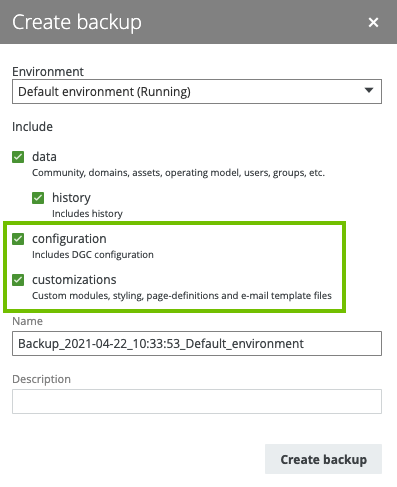
- Download the backup.
- Open the ZIP file, and then navigate to the directory dgc > images.
- Open the following files in a text editor and edit them to suit your needs:
- dashboard.html
- styling.css
- Re-zip the backup.Important When you zip the backup, ensure that you include the dgc directory and the JSON metadata file.
- Upload your edited backup.
Steps that you need to carry out in your Collibra Data Intelligence Cloud environment
Tip
The steps in this procedure are different for the classic and refreshed navigation.
-
In the main menu, click
 .
In the main menu, click
.
In the main menu, click Dashboard.
-
If required, switch to the Report Certification dashboard.If required, switch to the Report Certification dashboard.
-
In the dashboard toolbar, click
 → Edit widgets.In the dashboard toolbar, click
 → Edit widgets.
 - In the widget with the Report Catalog and Certified Reports tiles, click
 , and then click <>.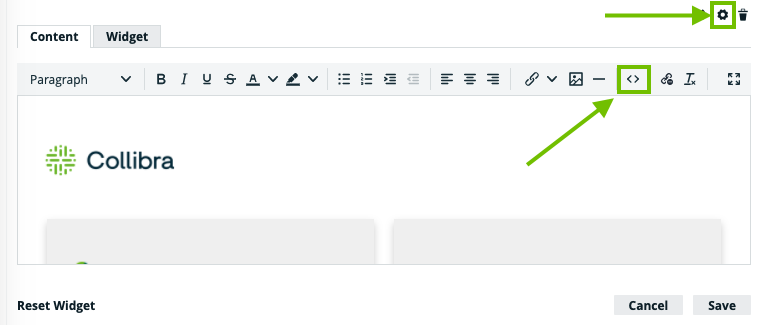
The Source Code field opens. - Replace the existing code with the following:
<div class=“iframe-container” style=“position: relative; overflow: hidden; padding-top: 68%”><iframe style=“border: 0 none; position: absolute; top: 0; left: 0; height: 100%; width: 100%;” src=“/resources/images/dashboard.html" width=“100%”> </iframe></div>
- Click Save.
- In the upper-right part of the page, click Close & save edits.
