About Tableau stitching
Stitching is a process that creates relations between assets representing the same data source: the data source of a Tableau report and the Data Catalog database. This allows you to clearly represent the lineage from the data source to the Tableau reports where it is used. As a consequence, you can easily perform impact analyses. For example, you can quickly see which reports will be affected if you refresh a table of your database, or which reports will be impacted if you drop one column from the table.
Before you can perform stitching, you have to ingest a Tableau report —including its data source— and register that data source separately in Data Catalog. The same data is then represented by Tableau assets as well as by regular Data Catalog assets such as Schema, Table and Column assets. Tableau stitching is based on the matching of the full name of Tableau Data Attribute assets and Column assets of registered data sources in Data Catalog. Follow the steps in the table below to enable Collibra Data Intelligence Cloud to automatically create relations between Tableau assets and assets of a registered data source in Data Catalog.
- You can only perform stitching if the Tableau report is based on a database. Stitching Tableau reports based on files such as CSV is not supported.
- Tableau stitching is based on full names and is case-sensitive. As a consequence, we recommend that you do not manually edit any asset names of data sources or Tableau assets. See the Tableau naming convention for more information.
Tableau stitching steps
To use Tableau stitching, you have to prepare the assets representing the data source in Tableau's logical data layer and in Data Catalog's physical data layer:
| Step | What | Simplified instructions |
|---|---|---|
| 1 |
|
|
| 2 | Prepare the physical data layer. | |
| 3 | Stitch Tableau logical data layer and physical data layer. |
|
| 4 | View stitching results. |
|
 Diagram
- If there were changes in Tableau or the data source, you have to do the following:
- Synchronize Tableau. This can be done manually or automatically, by means of a synchronization schedule.
- Refresh the schema of your data source. This can be done manually or automatically, by scheduling it during data source registration.
- Restitch Tableau's logical data layer or Data Catalog's physical data layer. This has to be done manually.
- You can also remove stitching.
Data layers
Tableau's logical data layer
We call the data source in Tableau the logical data layer, because it consists of Tableau metadata, rather than the physical data. It is created when you synchronize a Tableau server. It contains Tableau report metadata, including the data source.
- You can combine different data sources in one Tableau data source by using different methods, for example, Join or Union.
- If you combine physical data sources in the Tableau data source with the Join method, the Tableau logical data layer is created in Data Catalog. For more information about the Join method, see Join Your Data.
- If you combine physical data sources in the Tableau data source with other methods, for example, Union, the Tableau logical data layer is not created in Data Catalog.
Data Catalog's physical data layer
We call the data source in Data Catalog the physical data layer, which contains the physical tables and columns. It is created when you register a database as a data source. It contains the physical data of the data source.
Stitching results
Each element is represented twice in Collibra: once in Tableau's logical data layer and once in Data Catalog's physical data layer.
The corresponding assets are linked by relations:
- A relation of the type "Technology Asset source system for / source system Data Asset" type between the Database asset and the Tableau Data Model asset.
- Relations of the type "Data Element targets / sources Data Element" type between the Column assets and the Data Attribute assets, based on the full names of the assets.
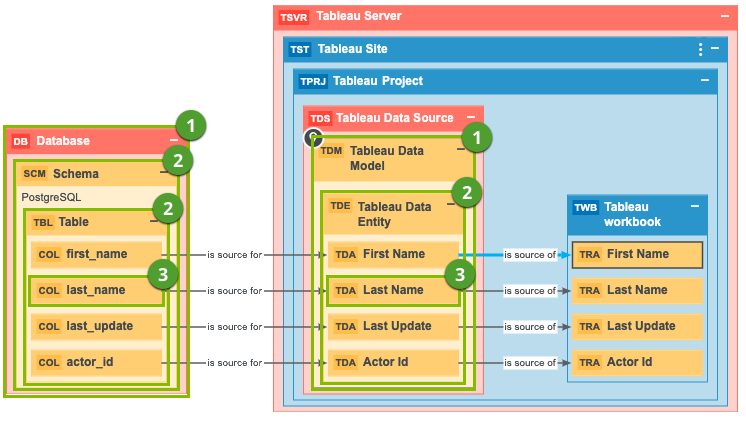
| Number | Data Catalog's physical data layer | Tableau's logical data layer | Description |
|---|---|---|---|
|
1 |
Database (DB) | Tableau Data Model (TDM) | An abstraction from the physical implementation of database, schema, file, etc., used for Tableau report creation. |
|
2 |
Schema (SCM) and Table (TBL) | Tableau Data Entity (TDE) | An abstraction from the physical implementation of database tables, used for Tableau report creation. |
|
3 |
Column (COL) | Tableau Data Attribute (TDA) | A specification that defines a property of a Tableau data entity. Examples: CustomerBirthDate, EmployeeFirstName. |
Naming convention
When you ingest a data source in Tableau, Tableau automatically creates names for the data source, data model, data elements and data attributes. When you create the logical data layer by synchronizing Tableau, Data Catalog uses the names in Tableau to create the corresponding Tableau assets. As a result, in Data Catalog, Tableau assets have as a full name the same name as the original data source names in Tableau.
When you create the physical data layer by registering the data source directly in Data Catalog, you enter the names of the Schema and Database assets manually. To make stitching work, we highly recommend to use the same name as the original data source to which the Tableau assets correspond as well:
- The name of the Schema asset should match a part of the Tableau Data Entity asset's full name. For example, database-name > schema-name.
- The name of the Database asset should match a part of the Tableau Data Model asset's full name.
The full name of the asset should match the asset path from the asset to the database it belongs to. For example, the full name of a Column asset would be database>schema>table>column name.
Warning Editing full name of the Tableau Server or Tableau Online assets may lead to errors during the synchronization process.
