Classify columns in a table
By classifying columns in a table, Collibra's Automatic Data Classification platform predicts their data structures, after which, you can accept or reject the prediction.
There are three methods to classify columns:
- Via a Database asset page
- Via a Schema asset page
- Via a Table asset page
Tip You can also use the physical data connector to manually select a data class for individual columns.
Prerequisites
- You have a global role with the Catalog global permission, for example Catalog Author.
- You have created a support ticket via Zendesk to access to the Automatic Data Classification platform.
- You have configured Automatic Data Classification for the DGC service.
- You have the correct permissions to classify tables and columns.
- You have registered a data source, including these options:
- Store Data Profile
- Store Sample Data
- Data Catalog experience is enabled in the DGC service configuration.
This will give you access to the improved Schema asset page.
Via the Database asset page
- Open the Database asset that contains the tables and columns in the schema you want to classify.
-
In the main menu, click
 , then
  Catalog.
The Catalog Home opens. - In the subpages, click Technology Assets.
- Filter on the Database asset type.
-
In the main menu, click
- Open the relevant database, and then click Actions → Classify.
You can follow the status of the classification in Activities. - Open the database asset with the classified columns.
- Add the Data Classification column to the table.
In the Data Classification column, you find the suggested data classes.
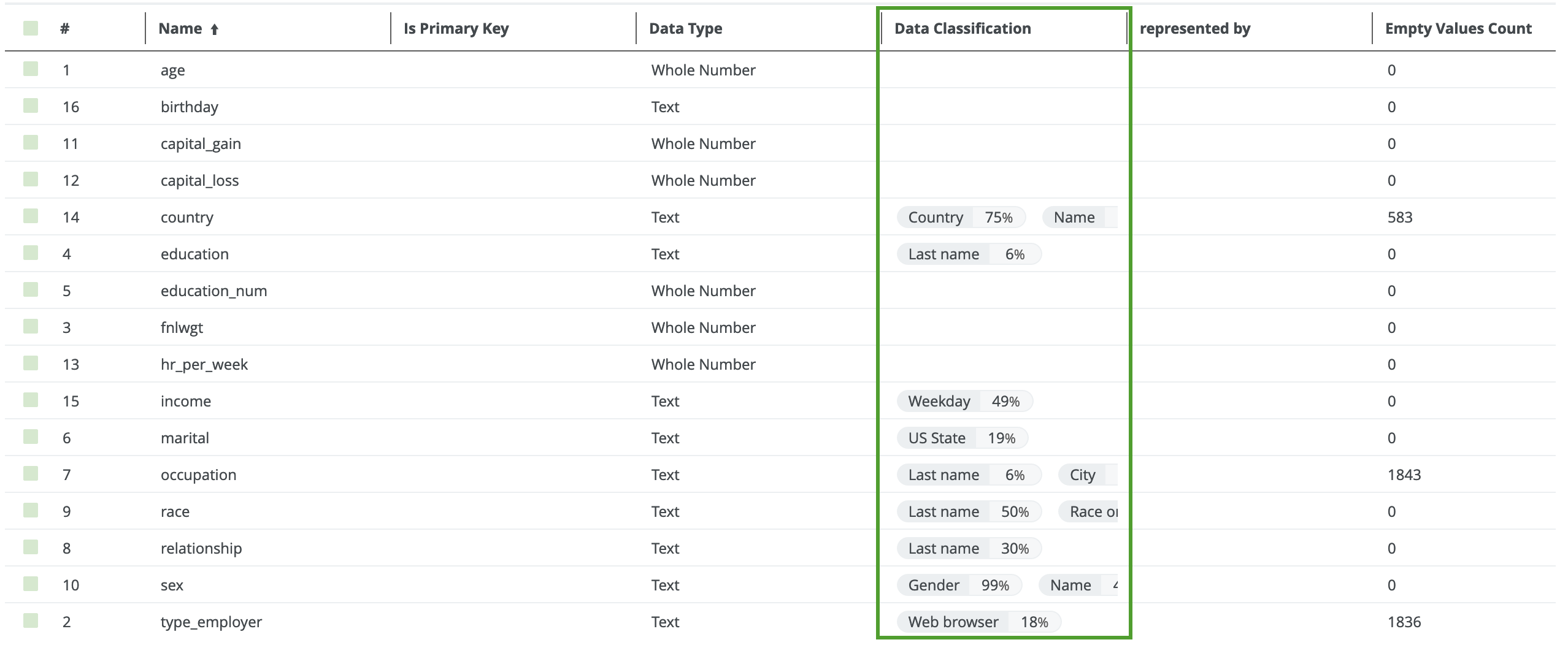
- Hover over the classification percentages and accept (
 ) or reject (
 ) the suggested data class.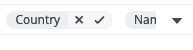
- Accepting the classification leaves the classification in the list.
- Rejecting the classification removes the result from the data classification list.
Via the Schema asset page
- Open the Schema asset that contains the tables and columns that you want to classify.
-
In the main menu, click , then Catalog.
The Catalog Home opens. - In the subpages, click Data Sources.
- Click the relevant schema.
-
In the main menu, click
- Click the Tables tab.
- Select one or more tables from the schema.
- To classify all columns in the table, click Actions → Classify.
Tip To classify one or more specific columns, select the columns, then click Actions → Classify.
You can follow the status of the classification job in Activities. - Open the Table asset with the classified columns.
- Add the Data Classification column to the table.
In the Data Classification column, you find the suggested data classes.
- Hover over the classification percentages and accept () or reject () the suggested data class.
Via the Table asset page
- Open a Table asset that has columns you want to classify.
- On the Table asset page, do one of the following:
- To classify all columns in the table, click Actions → Classify in the upper right corner.
- To classify specific columns in the table, select the columns and click Actions → Classify in the upper right corner.
You can follow the status of the classification job in Activities.
- Open the relevant table, and then add the Data Classification column to the table.
In the Data Classification column, you find the suggested data classes.
- Hover over the classification percentages and accept () or reject () the suggested data class.
